Official Troubleshooting Guide from AutoEcuMaster

If you own ECUHELP KT200II (Basic / Full / Final Version) and receive the pop-up error WinLicense An Internal Exception Occurred right after launching the software, this complete step-by-step guide will help you resolve the problem permanently. This license error is one of the most common issues reported by our workshop clients, caused by Windows security blocking, driver conflicts, offline dongle authentication failure, incomplete installation or license file corruption.
Table of Contents
- What Causes the WinLicense Internal Exception Error?
- Quick 5-Minute Emergency Fix (For Temporary Recovery)
- Complete Permanent Solution (Recommended For Long-Term Use)
- Dongle Activation Reset (For Full & Final KT200II Versions)
- Clean Reinstallation Process
- Contact Our Official Technical Support
- Official KT200II Product Purchase Links
1. What Causes the WinLicense Internal Exception Error?
WinLicense is the license encryption system built into all KT200II software to protect genuine hardware licenses. The exception error usually comes from these 6 root reasons:
- Windows Defender / Antivirus blocks KT200II core executable files (
kt200ii.exe,DFOX.exe, license DLLs) - Windows Driver Signature Enforcement blocks the DFB hardware driver
- Offline dongle (Full / Final Version) is loose, damaged or unactivated
- Corrupted installation files or missing license
.licfile - Running the software without Administrator permissions
- Using USB hubs instead of direct motherboard USB ports for dongle/host
All three KT200II editions (Basic Car Version, Full Version with Offline Dongle, Final Combo Version) may hit this error, but Full & Final models face higher risks due to the extra offline license dongle authentication process.
2. Quick 5-Minute Emergency Fix (Temporary Solution)
Use this method if you need to launch the tool urgently for ECU tuning jobs:
Step 1: Run Software as Administrator
Right-click the KT200II desktop shortcut → Select Run as administrator. Many license permission errors disappear instantly with elevated access.
Step 2: Temporarily Disable Windows Security
- Open Windows Security > Virus & Threat Protection > Manage Settings
- Turn off Real-time Protection temporarily
- Go to App & Browser Control > Smart App Control Settings → Disable Smart App Control Smart App Control often flags WinLicense encrypted executables as untrusted and triggers the internal exception crash.
Step 3: Direct USB Connection
Unplug KT200II host and offline dongle from USB hubs, extension cables or docking stations. Plug both directly into the rear motherboard USB 3.0 ports of your PC. Weak USB power breaks license handshake between hardware and software.
Step 4: Delete Damaged DLL File
Navigate to your KT200II installation folder (default: C:\KT200-Master), locate and delete dfb2xx.dll. Restart the software; it will auto-repair missing library files on launch.
After finishing your tuning work, re-enable Windows security to protect your workshop PC. This method only provides temporary relief — follow the full permanent fix below to avoid repeated errors.
3. Complete Permanent Solution (Best For All KT200II Users)
This set of steps eliminates the error at its source and prevents recurring WinLicense crashes.
Step 1: Add KT200II Folder To Antivirus Whitelist
- Open Windows Defender Exclusions: Virus & Threat Protection > Manage Settings > Add or Remove Exclusions
- Add the full KT200 installation folder (
C:\KT200-Master) - Add individual whitelist entries for these executables:
kt200ii.exeDFOX.exeKTUpdate.exeAntivirus quarantine breaks WinLicense encryption files, leading to authentication exceptions.
Step 2: Disable Driver Signature Enforcement
The DFB hardware driver for KT200II is unsigned, which Windows blocks by default, breaking license communication:
- Win10/11: Settings > System > Recovery > Advanced Startup > Restart Now
- After reboot: Troubleshoot > Advanced Options > Startup Settings > Restart
- On startup menu, select Disable driver signature enforcement (F7)
- Boot into Windows, launch KT200II as admin to test if the error disappears
Step 3: Reset Offline Dongle Authentication (Full / Final Version Only)
If you own KT200II Full Version or KT200II Final Version (equipped with offline dongle):
- Unplug the offline license dongle and KT200II host
- Reboot your computer fully
- Plug the dongle first, wait 10 seconds, then connect KT200II main unit
- Run
KTUpdate.exeas administrator, click Reset Device - Copy the hardware ID code shown on the update window
- Send this ID to our official WhatsApp support team for license reactivation: +8613075290269 Our technical staff will send a new valid
.licfile within 10 minutes to refresh your offline license, fixing WinLicense handshake failures.
Note: KT200II Basic Car Version does not include an offline dongle, skip this step.
4. Clean Reinstallation If Errors Persist
If the above steps do not resolve the internal exception, corrupted installation packages are the root cause:
- Uninstall KT200II via Windows Apps & Features
- Delete the entire
C:\KT200-Masterinstallation folder manually - Clear all antivirus quarantine history related to KT200 files
- Visit our official website https://autoecumaster.com to download the latest 2026 official software package
- Right-click the installer Setup.exe → Run as Administrator
- Do NOT change the default installation path (C drive recommended)
- After installation, repeat the whitelist and driver signature steps from Section 3 before opening the tool
5. Different KT200II Version Special Reminders
- KT200II Basic Car Version Link: https://autoecumaster.com/product/kt200ii-basic-car-version/ Only online license authentication; ensure stable internet connection when launching software. No offline dongle, so focus on antivirus whitelisting and driver fixes.
- KT200II Full Version (With Offline Dongle) Link: https://autoecumaster.com/product/kt200ii-full-version/ Offline dongle authentication is the top cause of WinLicense errors. Always plug the dongle first before opening software, and reactivate via WhatsApp if license expires/corrupts.
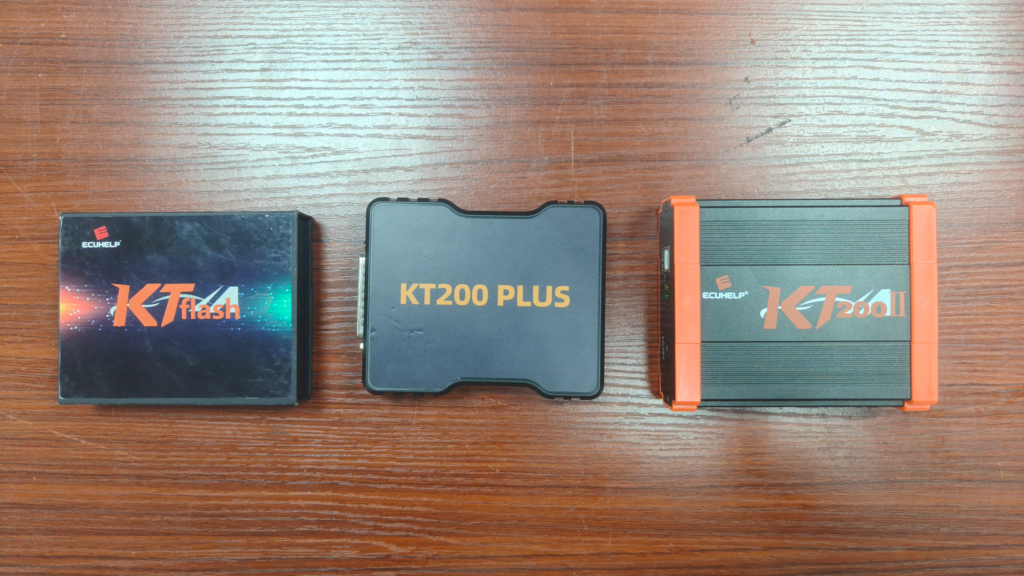
- KT200II Final Version (KT200II + KT200 Plus Combo) Link: https://autoecumaster.com/product/kt200ii-final-version/ Dual hardware (KT200II + KT200 Plus) doubles USB authentication load. Use two separate rear motherboard USB ports for the main host and KT200 Plus device to avoid power conflicts triggering WinLicense exceptions.
6. Official Technical Support Contact
If you follow all troubleshooting steps and the WinLicense error still appears, contact our dedicated technical team for one-on-one remote assistance: ✅ WhatsApp Direct Line: +8613075290269 Provide these details when messaging us for faster resolution:
- Which KT200II version you purchased (Basic / Full / Final)
- Screenshot of the WinLicense error pop-up
- PC Windows version (Win10 / Win11)
- Screenshot of Device Manager showing USB hardware status
- Dongle hardware ID (Full/Final Version users)
We provide free remote desktop support, license file resends and driver repair for all genuine AutoEcuMaster KT200II buyers. We are the original manufacturer of KT200II series ECU programmers, all hardware and software support is handled directly by our team.
7. Official Website & Product Links
Our official website for all KT200II details, specs, software downloads and orders: Official Homepage: https://autoecumaster.com/ Full KT200II specification page: https://autoecumaster.com/kt200ii/
- KT200II Basic Car Version Order Page: https://autoecumaster.com/product/kt200ii-basic-car-version/ ($700 Free Global Shipping)
- KT200II Full Version with Offline Dongle Order Page: https://autoecumaster.com/product/kt200ii-full-version/ ($855 Free Global Shipping)
- KT200II Final Ultimate Combo (KT200II + KT200 Plus): https://autoecumaster.com/product/kt200ii-final-version/ ($1330 Free Global Shipping)
All genuine KT200II tools come with lifetime free protocol updates and permanent technical support via WhatsApp. Avoid counterfeit tools from third-party resellers, as unlicensed clones will constantly throw WinLicense internal exception errors with no official fix available.